Guide
Setting Up Credentials
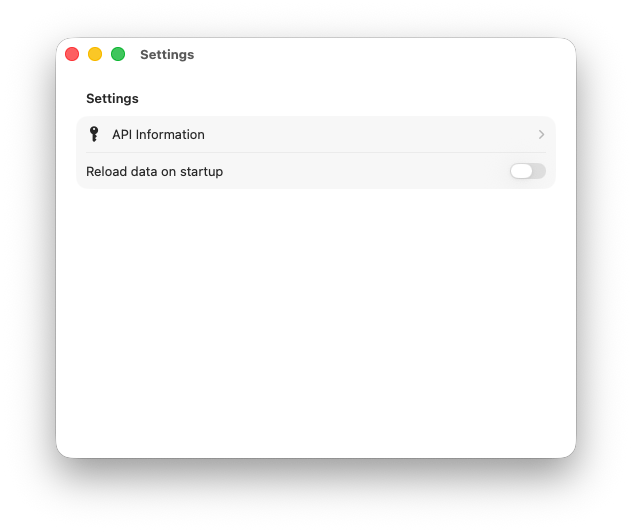
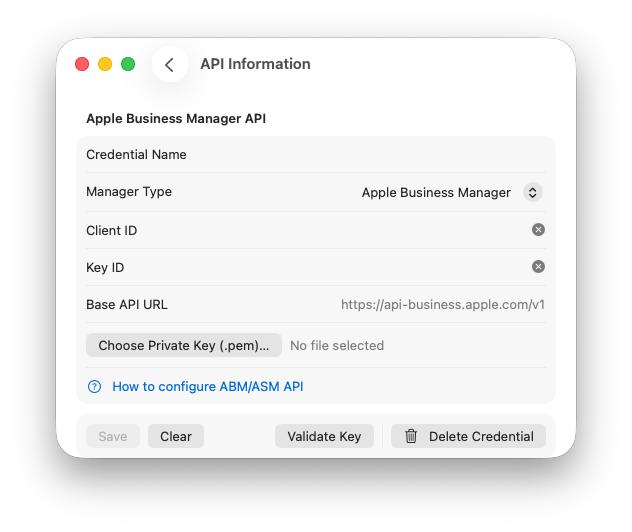
Before ABM Warranty can retrieve device inventory and warranty coverage, you must configure valid Apple Business Manager API credentials. These credentials are required for all live data imports.
ABM Warranty uses the following credential components:
- Client ID — Issued when creating an API key in Apple Business Manager
- Key ID — Identifies the API key used to sign requests
- PEM Private Key — Used locally to generate JWT client assertions
To configure credentials, open Settings and enter your Client ID and Key ID. Then select the corresponding PEM private key file to complete setup.
Credentials are validated locally. ABM Warranty does not transmit your private key to Apple. The PEM file is used only to sign short-lived client assertions required to authenticate API requests.
Each configured credential represents a distinct Apple Business Manager tenant. When a credential is added, ABM Warranty creates a dedicated local database that stores devices and coverage data associated only with that credential.
If credentials are missing, incomplete, or invalid, ABM Warranty will:
- Prevent live imports from Apple Business Manager
- Display credential health warnings in the Freshness Bar
- Surface authentication errors in the Status Dashboard
When no valid credentials are available, the app may operate using sample data. This allows you to explore the interface and features without making live API requests. Sample data is clearly labeled and is automatically removed once a successful import from Apple Business Manager completes.
After credentials are saved and validated, you can initiate a full import using the Refresh button. Import progress, authentication status, and any errors are recorded in the application Logs and summarized in the Status Dashboard.
ABM Warranty performs only read-only API operations and never modifies data in Apple Business Manager.